
The home Internet connection relies on a technical chain where every link matters: the type of access (fiber, ADSL, fixed 4G), the router, the internal wiring, and the Wi-Fi network configuration. A high speed at the entrance of the home guarantees nothing if the signal degrades between the box and the devices. Optimizing the Internet connection at home requires action on multiple levels, from hardware to software settings, depending on the actual usage of the household.
Bandwidth and latency: two distinct parameters to monitor

Most guides focus on the download speed, the one displayed during a speed test. This figure tells only part of the story. For remote work in video conferencing or online gaming, latency and signal stability matter as much as raw speed.
Latency measures the response time between your computer and the remote server. A connection with good speed but high latency causes micro-cuts in video calls, delays in gaming, and slowness in cloud applications. Reviewing the numbers on the onlyinternet.net site for home allows for comparing offers based on these two criteria, not just the advertised speed.
A regular speed test remains the first step in diagnostics. Orange, for example, offers a tool accessible directly from a browser. Test at different times and from several rooms to identify areas where the network weakens.
Separate devices between 2.4 GHz and 5 GHz bands

Recent routers emit on two frequency bands, sometimes three with Wi-Fi 6E. The 2.4 GHz band penetrates walls better but offers limited speed. The 5 GHz band delivers higher speed, with a shorter range.
The common reflex is to let the router automatically manage the distribution of devices between the two bands. This approach works poorly in a household with many connected devices. Creating two distinct SSIDs (separate Wi-Fi network names) provides finer control:
- Connect low-bandwidth devices (smart bulbs, voice assistants, home automation sensors) to the 2.4 GHz network, which handles distances and obstacles better
- Reserve the 5 GHz band for demanding uses: video streaming, video conferencing, transferring large files from a laptop
- If your box allows it, assign a less congested Wi-Fi channel on each band to reduce interference with neighboring networks
This segmentation prevents a connected thermostat from monopolizing a network resource at the expense of an ongoing video stream.
Ethernet cable and powerline adapters: when Wi-Fi is not enough
Wi-Fi remains a compromise between mobility and performance. For fixed stations (desktop computer, gaming console, smart TV), an Ethernet cable eliminates signal loss due to walls and interference.
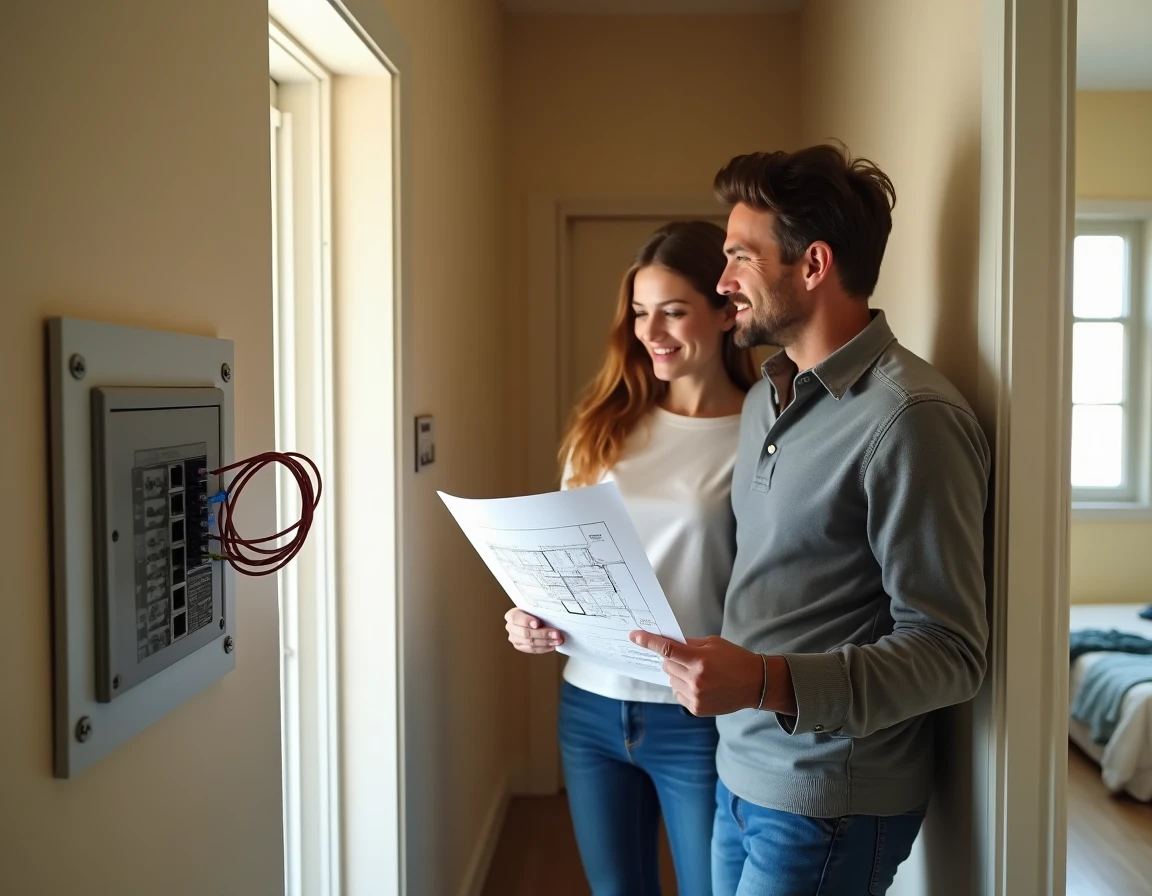
In older homes with thick walls, running an Ethernet cable over several dozen meters is not always realistic. Powerline adapters (HomePlug) use the existing electrical network to transport the network signal from one room to another. The quality of the result depends on the condition of the electrical wiring: a recent and uniform circuit yields good results, while an outdated panel with multiple branches degrades the signal.
Mesh router: an alternative to the traditional repeater
Wi-Fi repeaters amplify the signal, but they create a second network that divides the available bandwidth. A mesh system constitutes a single network with multiple coordinated access points. Devices automatically switch to the nearest access point without noticeable interruption.
TP-Link emphasizes the benefits of Wi-Fi Mesh for stability in large or multi-story homes. The cost of a mesh kit exceeds that of a simple repeater, but the gain in fluidity often justifies the investment for a household with multiple simultaneous users.
Software settings and maintenance of the home network
Hardware is not everything. A few software adjustments can improve the connection without additional expense.
Router firmware updates fix security vulnerabilities and optimize traffic management. Most operator boxes update automatically, but third-party routers require manual checking from the administration interface.
Clearing the browser and DNS cache resolves some slowdowns that have nothing to do with actual speed. On a Mac or Windows computer, the DNS cache purge command forces the resolution of up-to-date addresses and can unblock access to sites that seemed offline.
- Check that the router or box firmware is up to date at least once a quarter
- Disable Wi-Fi on unused devices to free up simultaneous connections
- Restart the router once a month: this simple gesture clears the buffer and resets the connection tables
Identify devices that saturate the network
The administration interface of the box displays the list of connected devices and their bandwidth consumption. A forgotten device (old tablet, poorly configured surveillance camera) can monopolize bandwidth in the background. Identifying and disconnecting these ghost devices frees up resources for priority uses.
Some routers offer a Quality of Service (QoS) feature that allows prioritizing traffic from a device or type of usage. Activating QoS for video conferencing ensures a stable stream even when another household member starts a large download.
The performance of a home network rarely hinges on a single factor. Separating frequency bands, prioritizing Ethernet cable where possible, keeping firmware up to date, and monitoring connected devices form a coherent whole. The best investment often remains diagnostics: a room-by-room speed test, repeated over several days, reveals precisely where the network loses quality.